
Home › User manual › Auto-navigation
Auto-navigate on new address
When an address arrives on your navi phone, your navigation app opens by itself right away. It opens even when the screen is off. You can use it from BaroLink 1.2.8 onward, and you only need to turn it on once.
Turn on auto-navigation
This switch appears only on the 경로 (Route) tab of the phone you use as your navi phone. It is off at first.
- On the 경로 (Route) tab, turn on 주소 수신시 자동 길안내 (Auto-navigate on new address) It is the row above the address list. Tap the switch or anywhere on the text.
- In the notice window, tap 설정으로 이동 (Go to Settings) Auto-navigation needs your phone's 다른 앱 위에 표시 (Display over other apps) permission. The app can't turn on this permission for you, so it takes you to your phone's settings screen.
- Find 바로링크 (BaroLink) in the list and tap it The 다른 앱 위에 표시 (Display over other apps) app list opens. The screen may look a little different on some phone models.
- Turn on 다른 앱 위에 표시 허용 (Allow display over other apps) Switch it to on.
- Press Back to return to BaroLink You're done when the switch is on and you see 주소 수신시 내비가 바로 길안내를 시작합니다. (Navigation will start right away when an address arrives.)
From 1.2.11, the switch has moved. Tap the small Auto-nav switch at the right end of the Addresses · Favorites · Trash tab row at the bottom of the Route tab. Steps 2–4 are the same; in step 5 you're done when the switch is on (there is no message line any more). See New Route tab for details.
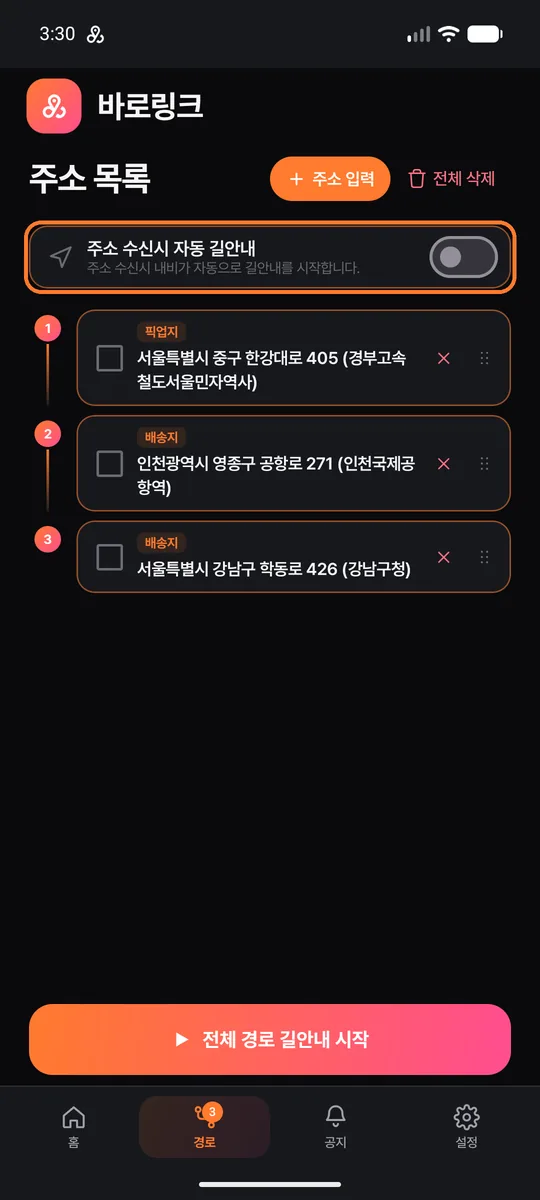
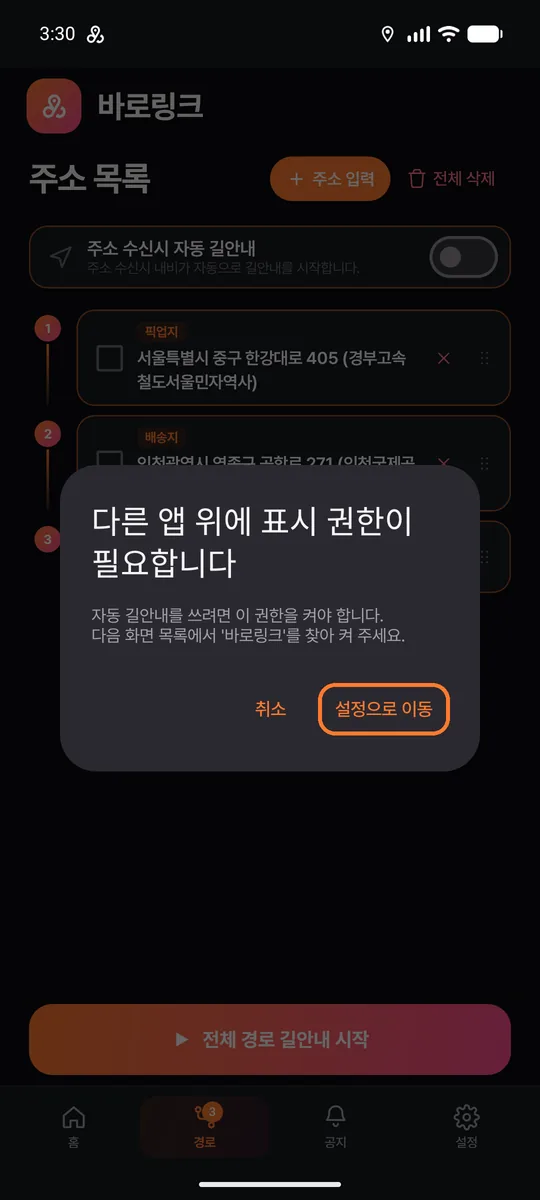
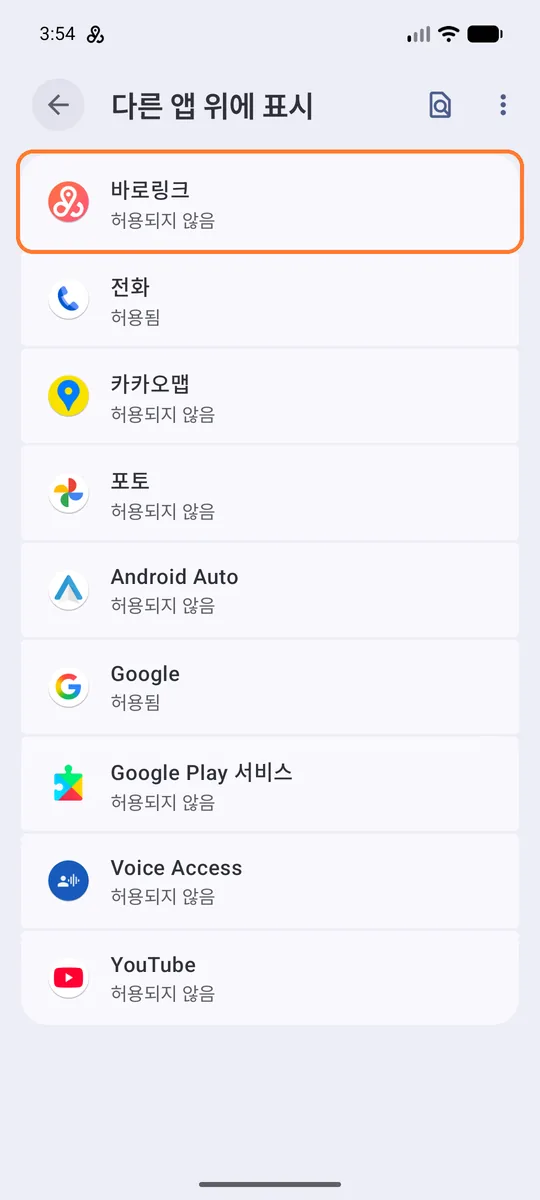


BaroLink uses this permission only to open your navigation app when an address arrives. If you come back without turning on the permission, the switch stays off. Please start again from step 1.
When an address arrives
When you send an address from the call phone, the navi phone vibrates and shows a notification, and then these steps follow.
- The screen turns on and the navigation app opens with that address right away The address that arrived shows for a moment (about 1 second), then it opens in the navigation app you chose on the 설정 (Settings) tab (KakaoMap · TMAP · Naver Map). It opens even when you are using another app or the screen is off.
- The address also stays in the route list and the notification Even if you close the navigation app that opened, the address is still there, so you can start directions again from the 경로 (Route) tab.
If your phone uses a screen lock (password · pattern), BaroLink appears over the lock screen for a moment, and then the unlock screen appears. When you unlock the phone, the navigation app opens. If you don't unlock it within 30 seconds, it closes and the address stays in the route list.
Up to BaroLink 1.2.10, a 3-second countdown screen (Cancel · Navigate now) appeared before the navigation app opened. From 1.2.11, it opens right away without the countdown.
Differences by navigation app
TMAP — On the route screen, the number on 안내시작 (Start guidance) counts down, and then TMAP starts navigating by itself (about 20 seconds).
KakaoMap · Naver Map — They open up to the route screen. Tap 안내시작 (Start guidance) once. It is the same when you open them with the navigation button on the 경로 (Route) tab.
When it doesn't open automatically
So that your screen doesn't suddenly change while you drive, and so that you aren't guided to the wrong place, BaroLink does not open the navigation app automatically in the cases below. Even then, the vibration, the notification and the route list work as usual.
- When 2 or more addresses arrive at once — Choose where to go first on the 경로 (Route) tab.
- When another address arrives within 90 seconds after the navigation app opened — It doesn't replace the directions that just started. This also counts when you opened it yourself.
- Addresses marked 주소 확인 필요 (Check address) — For an address with no lot or building number, check it first, then start navigation yourself.
- Addresses that arrive more than 2 minutes after they were sent — It won't suddenly start directions to an address that arrived late.
- Addresses sent before you turned on the switch — Only addresses that arrive after you turn it on open automatically.
- When the navigation app you set is not on the phone — On the 설정 (Settings) tab, choose a navigation app that is installed on your phone.
Turn off auto-navigation
If you turn off the switch on the 경로 (Route) tab, you go back to checking the notification and starting navigation yourself, as before. If you turn off the 다른 앱 위에 표시 (Display over other apps) permission in your phone's settings, the switch also turns off when you come back to BaroLink.
FAQ
I can't see the switch on my call phone.
That's normal. Auto-navigation only works on the navi phone, which receives the addresses, so the switch appears only on the navi phone's 경로 (Route) tab.
Does it turn on by itself when I update?
No. After the update, the app works the same as before. You need to turn it on yourself on the 경로 (Route) tab.
What if another navigation app is already guiding me while I drive?
BaroLink can't tell whether another navigation app is giving directions, so when a new address arrives it opens navigation to that address. While another navigation app is guiding you, turn off auto-navigation on the 경로 (Route) tab. If BaroLink opened navigation less than 90 seconds ago, it doesn't replace it. The new address stays in the route list.
Free · Android